Generating AI Metadata for Data Assets
After creating or configuring a data asset, you can generate the metadata suggestions using artificial intelligence (AI) for all the data asset fields. AI analyzes the available data asset information and suggests values for metadata fields, reducing manual effort and improving metadata completeness.
AI-generated content is provided as a recommendation only. Always review and validate the generated metadata before applying or saving it. You are responsible for ensuring the accuracy and completeness of metadata and specifications.
Prerequisites
Before generating metadata using AI, ensure that:
-
You have created and configured a data asset successfully.
-
You have the required permissions to create or edit Data Assets.
-
The Data Asset is in Unpublished status or Successful run status.
-
The Data Asset contains sufficient metadata, schema information, sample data, or source information for AI analysis.

Note:
The quality and completeness of AI-generated suggestions depend on the metadata and source information available for the Data Asset.
You can generate AI-assisted metadata while creating and configuring a new Data Asset or after the asset is created. AI analyzes the configured asset details and generates metadata suggestions that you can review before applying. To generate AI metadata while configuring a new data asset, refer to Configuring Data Assets.
To generate AI metadata after a data asset is created or configured
-
Navigate to Data Assets and search for the required data asset.
-
Click the Asset Name for which you want to generate AI metadata. The selected data asset details screen appears.
-
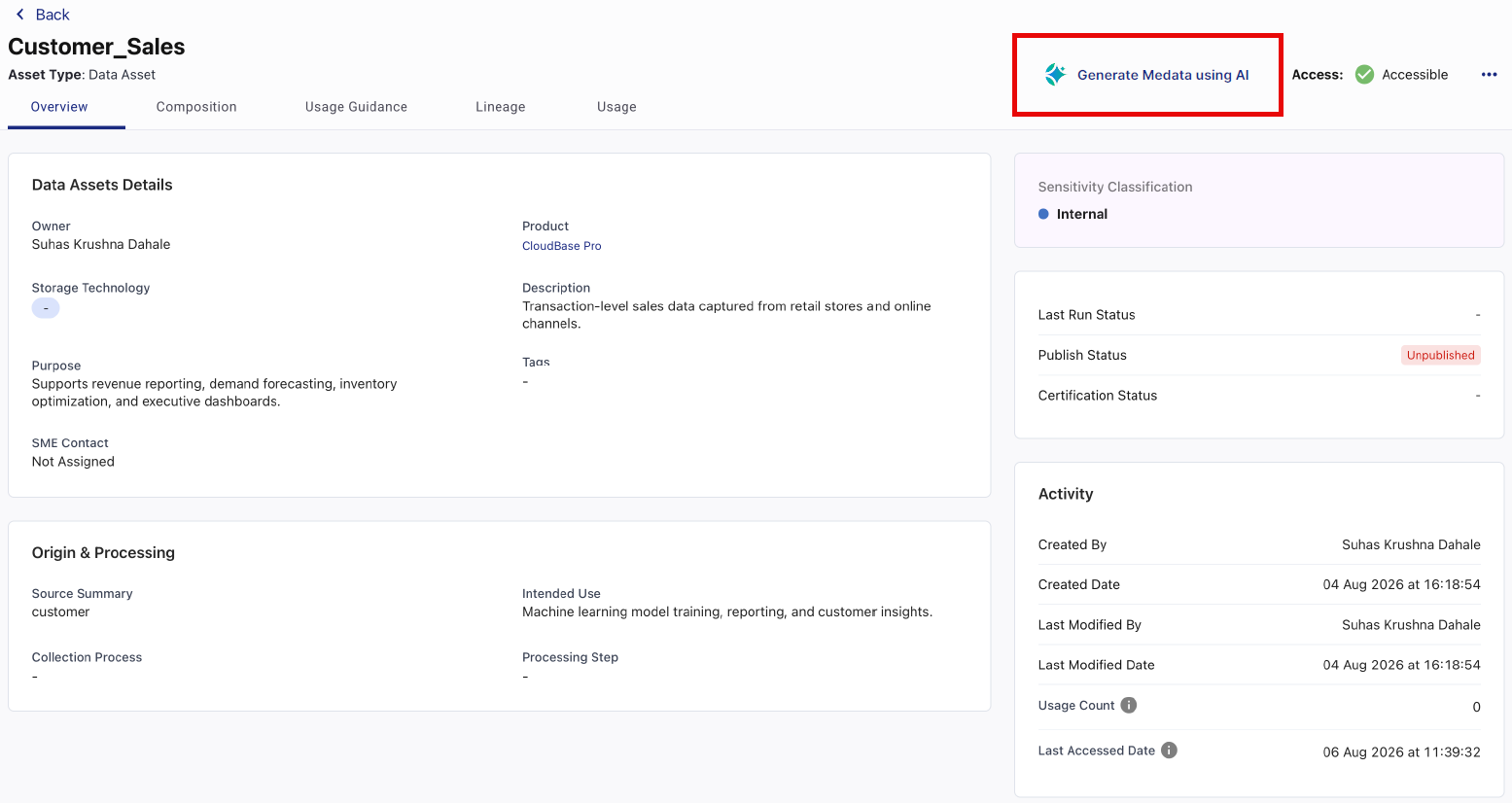
On the top right corner, click Generate Metadata using AI. The Generate Metadata Using AI screen appears.
-
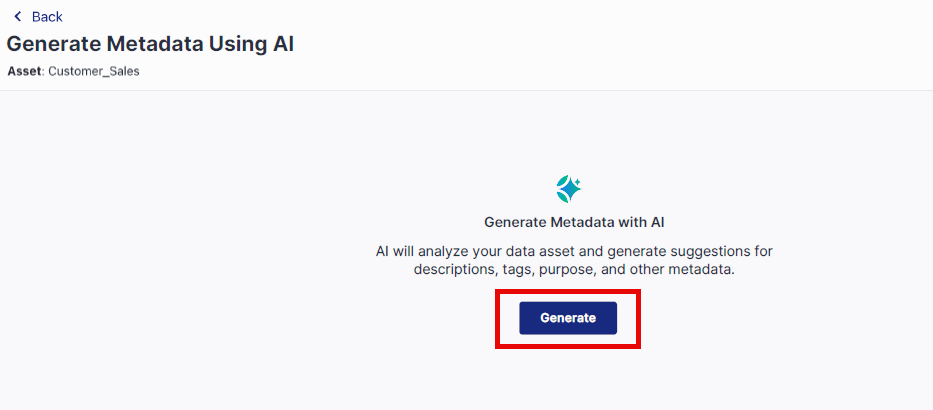
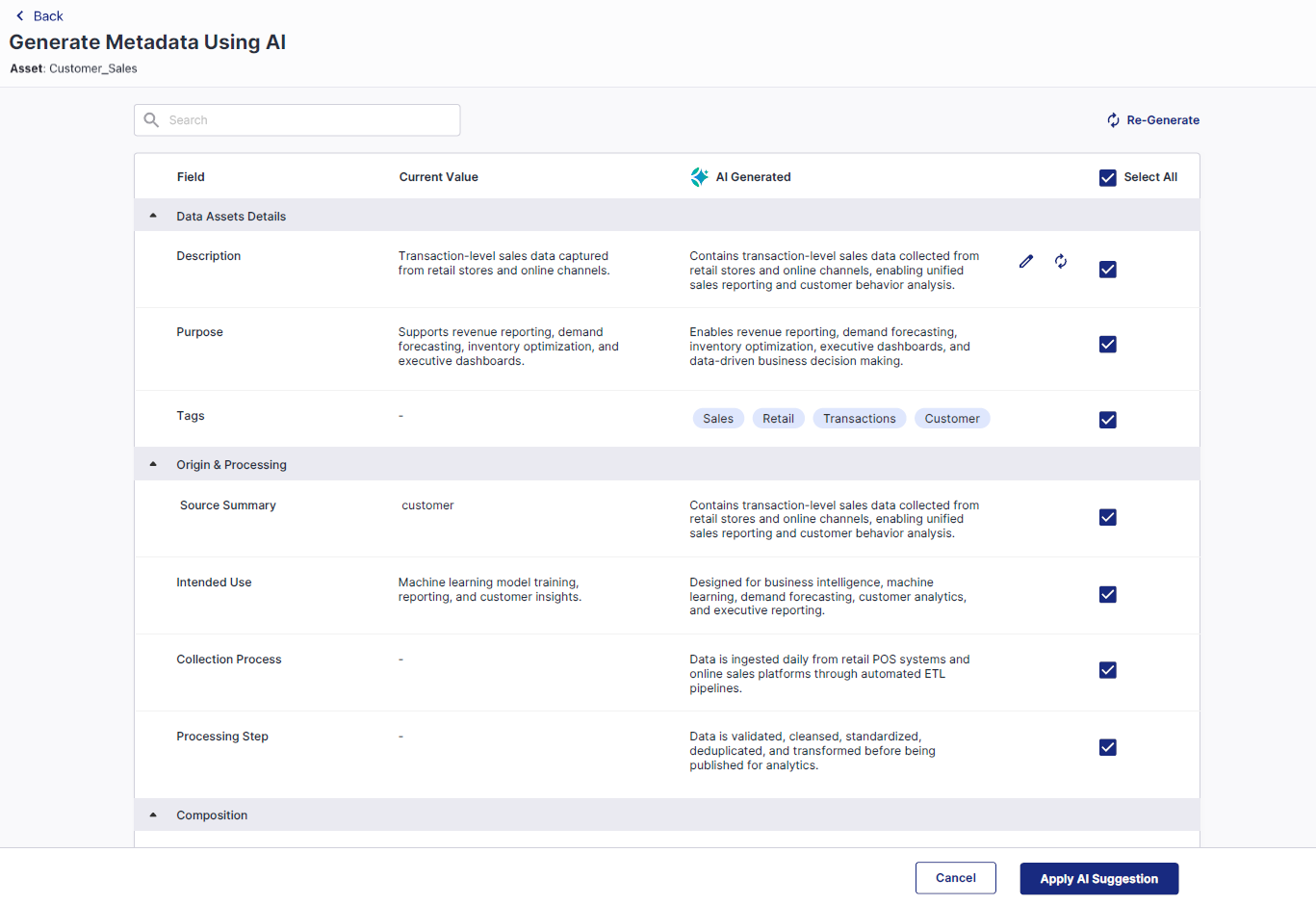
Click Generate. After metadata generation completes, the Generate Metadata Using AI screen displays the current metadata values and AI-generated suggestions side by side.
-
Review the AI Generated metadata values for each field, then select the suggestions you want to apply. You can select individual fields or click Select All to apply the AI generated metadata suggestions.
Note:
To modify the AI generated metadata, do the following:
-
Hover over the required AI Generated suggestion.
-
Click the edit icon.
-
Edit the suggestion as required.
-
Click the tick icon.
-
-
Use the Re-Generate icon to regenerate the AI metadata suggestion for all fields or hover over the required AI Generated suggestion and click the re-generate icon to regenerate the AI metadata suggestion for a specific field.
-
Click Apply AI Suggestion. A confirmation message displays that the AI suggestion applied successfully and the selected values are applied to the metadata fields.
-
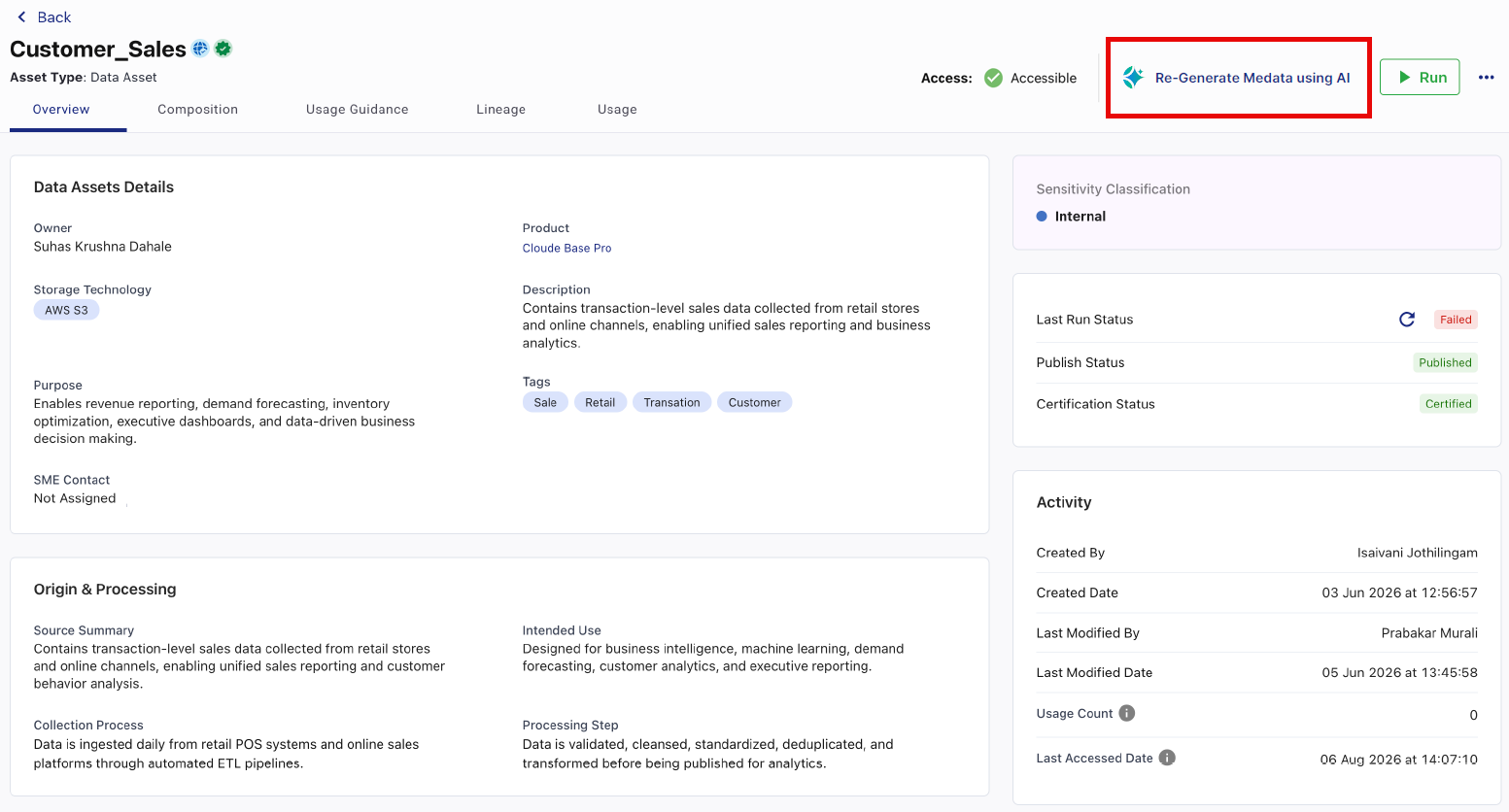
To regenerate a new set of AI recommendations from the data asset details screen, do the following:
-
On the top right corner, click Re-Generate Metadata using AI.
-
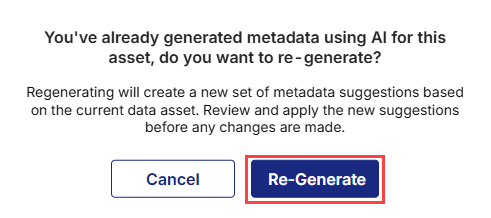
In the dialog, review the confirmation message and click Re-Generate.
-
In the Generate Metadata Using AI dialog, repeat steps 4 to 6. The new metadata suggestions are generated based on the current data asset information.
-
|
What's next? Running Data Assets |
 Recommended Topics